
Tutorial · Sina Dadmehr · Utrecht
How to set up your business on ChatGPT (Business Hub) — and what the data shows
Business Hub is the beta area in ChatGPT, launched on 10 November 2026, where you claim a business and manage the details you provide. Open it from the sidebar, find or add the business, verify with a method you control, then complete Persona before you publish edits or see insights. If Persona approves a new profile, that approval publishes it, and OpenAI Support cannot delete, unpublish or hide a published profile.
The voiceover is AI-generated. The script is by Sina Dadmehr. Nothing from YouTube loads until you press play.
What is Business Hub in ChatGPT?
Business Hub is where an owner, or someone authorized to represent the business, can find or add a listing, verify the connection, and later edit public details. You do not need an ads account or a ChatGPT Enterprise agreement. Eligibility depends on the business’s location and type. A public country list was not published with the launch. Samsina is a Utrecht consultancy with a website, so the relevant path is an online business, not a U.S. storefront listing.
This is not the paid ChatGPT Business subscription, and it is not a Business Agent. Business Agents are a separate product, currently limited to eligible ecommerce and online service businesses in the United States.
How do you claim your business on ChatGPT?
1. Open Business Hub in ChatGPT
Sign in to ChatGPT and open Business Hub from the sidebar. This is Businesses in ChatGPT, not the paid ChatGPT Business team plan.
2. Search for the business, or add it
Search by the business name. If a listing matches, select it. If you run an eligible online business and cannot find it, ChatGPT may offer an option to add it. Local stores and restaurants can currently claim only an existing U.S. listing.
3. Verify with a method you control
ChatGPT lists four methods: business phone, business email, website domain, or a Shopify store. Use the one the screen actually offers. For the website, ChatGPT shows a DNS TXT record. Copy those values exactly and give them to whoever manages the domain. Do not invent a record in advance.
4. Wait for the claim review
OpenAI reviews the claim and emails a decision or a request for more information. The review time is not published. You can cancel the claim while it is still under review.
5. Complete Persona identity verification
Claim approval alone does not publish profile edits or unlock insights. Complete verification with Persona. The help article, not the product page, is the rule for the badge: the blue check appears after Persona approval, not merely because the business was claimed.
6. Edit the profile
After Persona is approved, update only information that is true and current: website, description, category, logo, and any contact details you are prepared to show. OpenAI reviews changes. A saved edit does not mean every ChatGPT answer updates at once.
7. Read Insights
Open Insights only after the claim and Persona are approved. Mentions for an online business count when ChatGPT references the website, not the brand name alone. Website clicks are click-throughs to the site. A blank metric is not the same as zero.
What happens when Persona approves a new profile?
What did the data show after 7 days?
Samsina’s own Business Hub insights showed 408 mentions and 1 website click in 7 days. The 7-day view is data through 11 November 2026 (UTC). It is one week of data, not a before-and-after.
A mention means ChatGPT referenced the website in an answer. It is not a visit, and it is not a person. Those two figures are Samsina’s own insights. The transcript below repeats them and also keeps the other figures that were spoken in the video.
Where do the official sources say this?
Which pages on this site go further?
Full transcript
ChatGPT mentioned my website 408 times in seven days. It sent one click. That's from the new Business Hub inside ChatGPT. In this video I'll show you how to set it up step by step, including the one step I'd be careful with. Then I'll show you what those numbers actually mean, and what they don't.
On the tenth of November, OpenAI launched Businesses in ChatGPT in beta. OpenAI says 1.2 billion people use ChatGPT each week. Until now, there was no official place to see whether your business shows up there at all, or to manage that information.
First, a definition, because it changes how you read everything else. For an online business, a mention counts when ChatGPT references your website in an answer. Your brand name on its own doesn't count. A mention is not a visit, and it's not a person. So 408 mentions against one click tells you one thing very clearly. Being mentioned is not the same as being visited.
Business Hub lets you add or claim your business in ChatGPT, keep its details current, and see aggregated insights, such as mentions and website clicks. What it doesn't do: claiming your business does not make ChatGPT recommend you more often. OpenAI is explicit about that. It lets you manage the information you provide. It doesn't give you control over ChatGPT's own answers.
There's also something called Business Agents. That's a separate product, currently only for eligible ecommerce and online service businesses in the US, and the agent builder isn't available in the Netherlands yet. I won't cover it here.
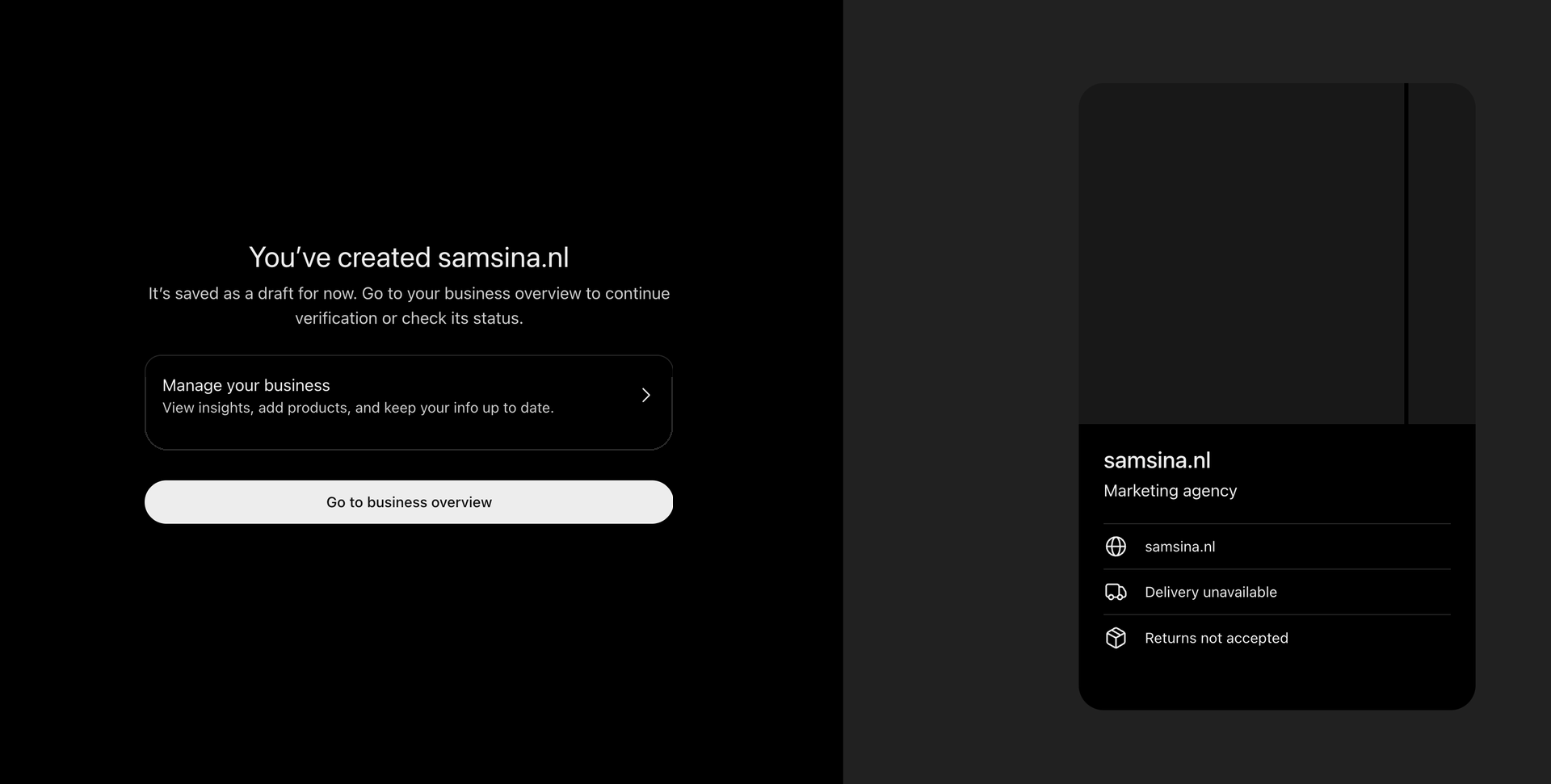
Sign in to ChatGPT and open Business Hub from the sidebar. Search for your business by name. If it's there, select the listing and confirm the account you'll manage it with. If it isn't there and you run an eligible online business, you may see an option to add it. That's what happened to me. samsina.nl had no listing, so I added it. You end up on this screen: You've created samsina.nl. It's saved as a draft. One note: local stores and restaurants can currently only claim an existing US listing.
Next, you prove you're connected to the business. OpenAI offers four methods: business phone, business email, website domain, or Shopify. Phone sends you a code by text or automated call. Email sends a code to the address associated with your business. Domain means adding a TXT record to your DNS. If someone else manages your domain, ask them to add it, and know that DNS changes can take time. Shopify means logging in to your store. Pick the one you actually control. I used business email. A code went to my samsina.nl address. I entered it, and that was it. No DNS changes needed. OpenAI then reviews the claim and emails you its decision.
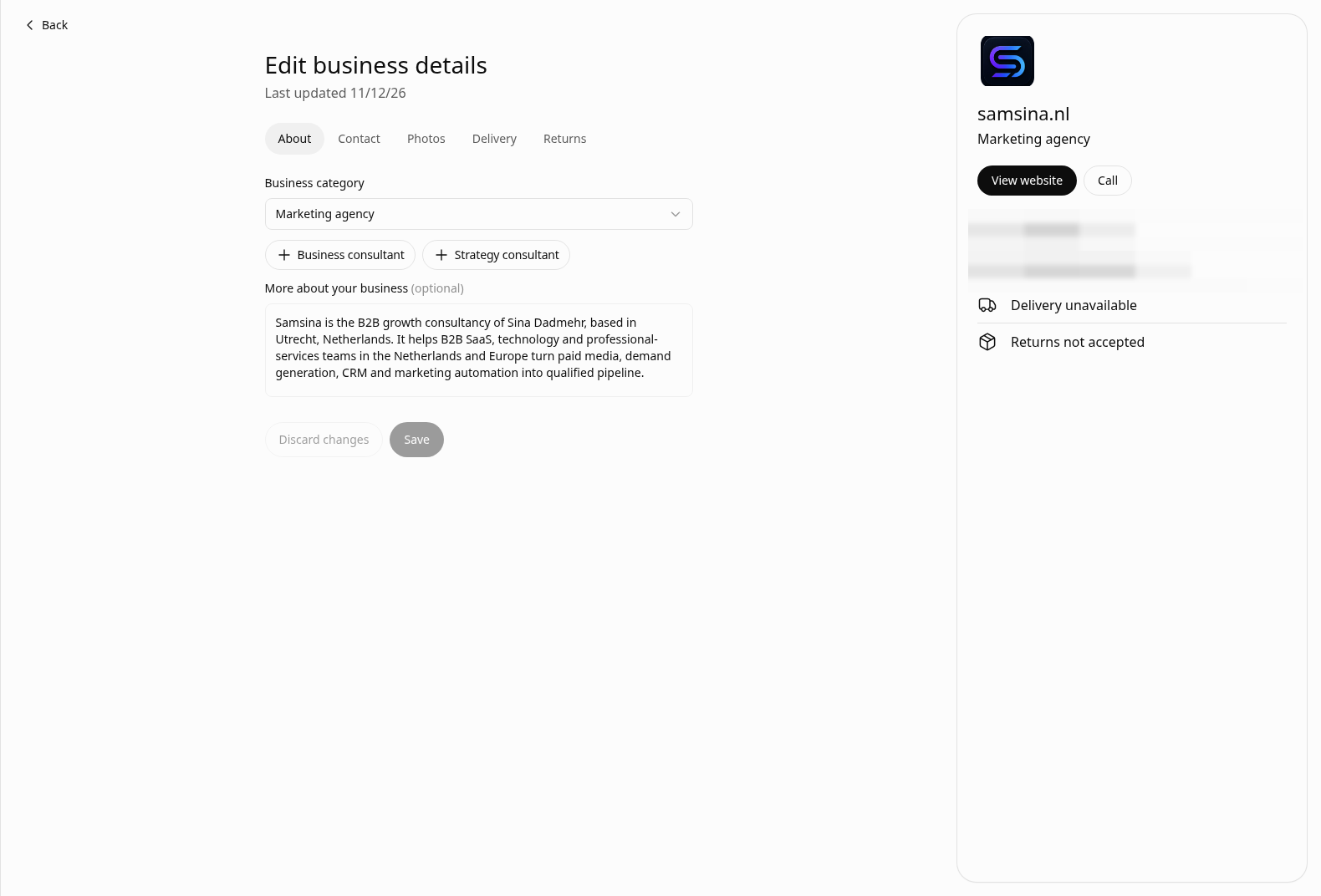
This is the step most people will skip. Open the editor and look at the preview as if a stranger is reading it. On my profile card, a phone number and an email address showed up. I treated both as details that might become public, and I removed the phone number. I set the category to Marketing agency and wrote a short description. Delivery and returns are fields built for retail. I set delivery to none and returns to not accepted, so the status is explicit, not just blank. Changes go through review. A cover update of mine was still showing as "Reviewing your change" when I wrote this up.
Then there's Persona, a separate identity check. You need it before you can publish changes or view insights. You may need a government-issued ID, business registration information — for me that's the KVK number — and proof that you're authorised to represent the business.
Here's the caveat. OpenAI says that if you use Persona to create a new profile, approval publishes that profile automatically, with no separate publishing step. And a published profile cannot be deleted. Only unpublished drafts can. And OpenAI Support can't delete, unpublish, or hide a published one as part of a setup request. I verified my email first, checked my public details, and did Persona afterwards. It's not clear whether that later approval also publishes the profile automatically, so treat it as if it does. Get your details right before you start Persona. Also, the blue verified check comes after Persona approval, not after claiming.
Once you're through, open Brand insights. You'll see mentions and website clicks, aggregated. You don't see individual prompts or conversations. The help article describes a 28-day window. There's also a 7-day toggle, and that's the view I'm showing. One more thing: a blank metric doesn't necessarily mean zero activity. It can mean data is still being collected, or hasn't reached a reporting threshold.
In my 7-day view, with data through the eleventh of November, that's 408 mentions and one website click. Two honest caveats. Most of those seven days are from before I created the profile, so the profile didn't cause them. ChatGPT was already referencing samsina.nl. And this is one small consultancy's data, so it's a field note, not a benchmark. I don't know yet what drives the mentions, or whether the profile will change them from here.
So what to do this week. Open Business Hub. Verify with a method you actually control. Check the preview before anything else. Do Persona last. And then look at your mentions next to your clicks. If there's a big gap, that's the question worth working on. I wrote all of this up in my newsletter, The Pipeline Notes. It's one practical B2B lead-gen fix every Tuesday.